
How to Zoom In Timeline DaVinci Resolve and Change Track Height
Disclosure: this page contains Amazon affiliate links. As an Amazon Associate we earn from qualifying purchases, at no extra cost to you.
Hello there, timeline tamer, ready to see your edit up close?
Picture a timeline so squeezed together that every clip looks like a thin colored line, and you just want to see one cut up close.
DaVinci Resolve can zoom right in on it, but only once you know which page and which tiny slider to use.
Most of the quick timeline tricks below use a mouse wheel, so one of the mice with a scroll wheel on Amazon makes zooming and resizing much faster than a laptop trackpad.
Short answer: To zoom in on the timeline in DaVinci Resolve, open the Edit page and drag the Zoom Slider in the timeline toolbar to the right, or click its plus button. Press Command or Ctrl with = to zoom in, with minus to zoom out, and Shift-Z to fit everything. Drag a track’s top divider to change its height.
- Where timeline zoom works
- The Edit page; the Cut page’s lower timeline has a fixed zoom
- The zoom control
- The Zoom Slider in the timeline toolbar, with a minus button on its left and a plus button on its right
- Zoom keys
- Command-Equal (=) zooms in and Command-Minus (−) zooms out on a Mac; Ctrl on Windows and Linux
- See the whole edit
- Shift-Z fits every clip into the timeline width; press it again to go back
- Change one track’s height
- Drag the track’s top divider in the track header
- Change all track heights
- Video and Audio track height sliders in the Timeline View Options menu
- Version checked
- DaVinci Resolve 21 Reference Manual, ; free version and Studio alike
Why can’t you zoom the timeline on the Cut page in DaVinci Resolve?
The Cut page in DaVinci Resolve has no timeline zoom control at all, so you switch to the Edit page to zoom. That is the first step in our tutorial too: there’s no way to resize your timeline from here.
Blackmagic’s DaVinci Resolve 21 manual explains why on page 663. The Cut page shows two timelines: an Upper Timeline that always fits the whole program, and a Lower Timeline zoomed in around the playhead. About that lower one, the manual says: The zoom level is fixed; you cannot change it.
- Look at the page bar along the bottom of the DaVinci Resolve window.
- Click Edit, the third button, right after Media and Cut.
- If the page bar is hidden, choose Workspace > Show Page Navigation to bring it back, or use Workspace > Switch to Page.
The Edit page opens the same timeline you were cutting, so nothing is lost. Blackmagic’s Edit page overview shows the full timeline with its toolbar and track headers.
DaVinci Resolve for iPad works the same way. Its App Store listing (version 21.2) describes Cut page editing, so the Upper Timeline is where you see the whole program.
How do you zoom in on the timeline in DaVinci Resolve?
You zoom in on the DaVinci Resolve timeline with the Zoom Slider in the Edit page toolbar, just above the timeline. Drag it right to zoom in and left to zoom out, or click the small plus and minus buttons at its ends.
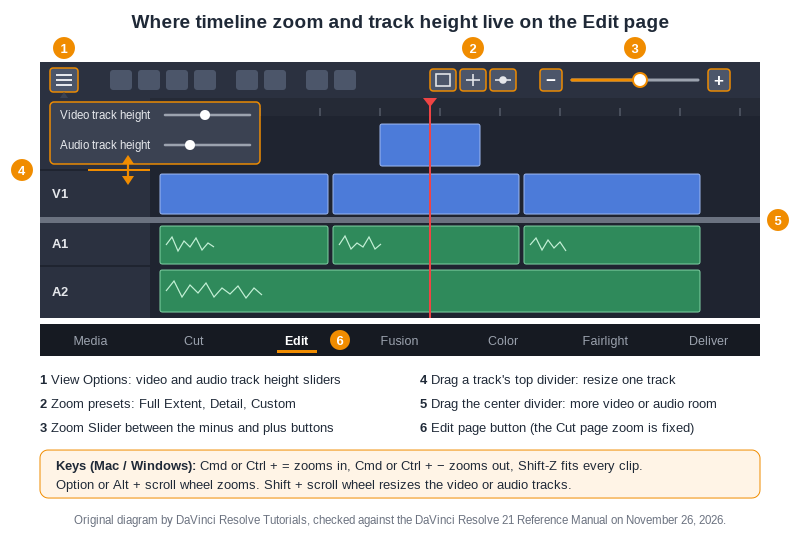
What the diagram shows, in text:
- Timeline View Options (far left of the toolbar): opens the Video track height and Audio track height sliders.
- Zoom presets: Full Extent Zoom, Detail Zoom and Custom Zoom, left to right.
- Zoom Slider: right of the presets, between a minus button and a plus button.
- A track’s top divider in the track header: drag it up or down to resize that one track.
- The center divider between the video and audio tracks: drag it to give one side more room.
- Edit in the page bar: the page where all of this works.
Here are the steps to zoom in and out on the timeline in DaVinci Resolve:
- Click Edit in the page bar at the bottom of the window.
- Park the playhead on the part you want to see. The manual says zooming
is always centered on the current position of the playhead, even if the playhead is off screen.
- Click the plus button at the right end of the Zoom Slider to zoom in one step.
- Click the minus button at the left end to zoom out one step.
- Or drag the slider itself for a smooth zoom, right to stretch the clips wider, left to squeeze them together.
Zooming only changes how the timeline looks. It never changes a clip’s length, its speed or the video itself.
If you came here to zoom into the picture of a video, that is a different tool. Zooming the video in the Inspector with keyframes covers that job.
What is the DaVinci Resolve zoom timeline shortcut?
The DaVinci Resolve timeline zoom shortcut is Command-Equal (=) to zoom in and Command-Minus to zoom out on a Mac, and Ctrl-Equal and Ctrl-Minus on Windows and Linux. Shift-Z fits the whole edit into the timeline width.
The = key is the one that also carries the plus sign, so the manual’s toolbar page calls the same shortcut Command-Plus. You don’t need to hold Shift for it.
Blackmagic writes every shortcut with Mac keys. Page 20 of the manual gives the rule for everyone else: the Option key becomes ALT, and the Command key becomes Control on Windows and Linux.
| What you want | Mac | Windows and Linux | Manual page |
|---|---|---|---|
| Zoom in | Command-Equal (=) | Ctrl-Equal (=) | 874 |
| Zoom out | Command-Minus (−) | Ctrl-Minus (−) | 874 |
| Fit every clip, then go back | Shift-Z | Shift-Z | 874 |
| Zoom with the mouse wheel | Option + scroll | Alt + scroll | 875 |
| Taller or shorter video or audio tracks | Shift + scroll | Shift + scroll | 875 |
| Move forward or back in time | Command + scroll | Ctrl + scroll | 875 |
| Jump the playhead to the pointer | C | C | 876 |
| Pan in any direction | Middle-click and drag | Middle-click and drag | 875 |
| Wheel scrolls tracks up and down, or time sideways | Preferences > User > UI Settings > 2D timeline scrolling | 114 | |
Shift-Z is a toggle. Press it once to see the whole edit, move the playhead somewhere new, and press it again to zoom back in at the new spot. The manual recommends exactly that trick for long timelines.
What do Full Extent, Detail and Custom Zoom do in DaVinci Resolve?
Full Extent, Detail and Custom Zoom are three preset buttons just left of the Zoom Slider in the DaVinci Resolve Edit page toolbar. Each one sets the timeline zoom for a different kind of work.
- Full Extent Zoom keeps the whole timeline in view and zooms out by itself as you add clips, or in as you remove them.
- Detail Zoom jumps in on the playhead to the frame level, for trimming a single frame.
- Custom Zoom uses whatever level you last set with the Zoom Slider.
Want the zoom to follow your mouse instead of the playhead? Choose View > Zoom Around Mouse Pointer. With it on, holding Option (Alt on a PC) and scrolling keeps the timeline centered on the pointer, which the manual calls helpful for longer timelines.
How do you change track height in DaVinci Resolve?
To change track height in DaVinci Resolve, drag a track’s top divider in the track header up or down. The Timeline View Options menu also has Video and Audio track height sliders that resize every track at once.
In our tutorial this works a lot like Adobe Premiere (Premiere Pro): grab the edge in the track header and pull. Here are all four ways, from the manual’s pages 869 to 876:
- One track: hover over the top border of a track in the track header (the area on the left with V1, A1 and the track buttons), then drag it up or down until the track is the height you want.
- All video or all audio tracks: click Timeline View Options at the far left of the toolbar and drag the Video track height or Audio track height slider. The two sliders work independently.
- With the mouse wheel: hold Shift and scroll. The pointer’s position decides whether the video or the audio tracks change.
- More room for one side: drag the horizontal divider between the video and audio tracks up or down.
Taller tracks show bigger thumbnails and fuller waveforms. If audio clips look flat, turning the waveforms back on usually goes hand in hand with a taller audio track.
How do you scroll the timeline in DaVinci Resolve when you’re zoomed in?
Once the DaVinci Resolve timeline is zoomed in, you scroll it with the scroll bars, the mouse wheel, or a middle-click drag. The manual lists four ways on page 875:
Fun fact for anyone who ever stared at a sliver of a clip: that tiny slider is the whole secret. It hides in plain sight, right above the tracks.
- Drag the horizontal or vertical scroll bars.
- Choose Playback > Next/Previous > Timeline Page to move one screen at a time. You can give these commands a keyboard shortcut.
- Roll the mouse wheel or swipe on a trackpad to scroll up and down through the tracks.
- Middle-click and drag to pan in any direction, the way you pan a zoomed viewer.
Prefer the wheel to scroll sideways through time? Turn off 2D timeline scrolling in Preferences > User > UI Settings. On page 114, the manual says that with the box unchecked, the mouse wheel scrolls the entire timeline horizontally.
Lost the playhead off screen? A small playhead marker appears in the bottom scroll bar to show where it is. Press C to snap the playhead to your pointer instead.
How do you change track order in DaVinci Resolve?
To change track order in DaVinci Resolve, right-click a track’s header and choose Move Track Up or Move Track Down. The track moves together with every clip on it.
- Tracks Index: open the Index panel, click the Tracks tab, and drag a track by its # field to a new position.
- Add a track: right-click a track header and choose Add Track. New video tracks appear above the one you clicked, new audio tracks below.
- Add several at once: choose Add Tracks and set how many video and audio tracks you want, and where.
- Clear the clutter: Delete Empty Tracks removes every track without clips.
Video tracks higher up cover the ones below, so moving a track changes which clip you see. Check the viewer after every move.
How do you change the timeline zoom shortcuts in DaVinci Resolve?
You change any DaVinci Resolve shortcut in DaVinci Resolve > Keyboard Customization. Search for “zoom” there to see which keys zoom the timeline now and to assign new ones.
- Choose DaVinci Resolve > Keyboard Customization.
- Pick All Commands in the Commands list.
- Type zoom in the Search field to list every zoom command and its keys.
- Assign your own key, then save your set with Save As New Preset from the Option menu.
Coming from Premiere Pro? The dropdown at the top right of that window holds preset key sets that, in the manual’s words, attempt to mimic other NLEs
(other video editors). A command Resolve doesn’t have can’t be mapped, but most editing keys have a match.
Why is timeline zoom not working in DaVinci Resolve?
Timeline zoom that won’t work in DaVinci Resolve almost always comes down to the page you’re on, the key you’re holding, or a view setting. Here are six common cases, matched to the Resolve 21 manual:
| What you see | Why it happens | The fix |
|---|---|---|
| No Zoom Slider anywhere | You’re on the Cut page, whose lower timeline zoom is fixed | Click Edit in the page bar |
| The scroll wheel scrolls instead of zooming | The manual lists Option-scroll (Alt-scroll) for zoom | Hold Option or Alt while you scroll |
| Zoom jumps away from the part you want | Zoom centers on the playhead, even off screen | Move the playhead there first, or turn on View > Zoom Around Mouse Pointer |
| The timeline keeps zooming out by itself | Full Extent Zoom is on | Click the Custom Zoom button |
| Thumbnails turned into plain bars | The track is shorter than the thumbnail size | Drag the track’s top divider to make it taller |
| Audio tracks look thin and empty | Display Audio Waveforms is off, which minimizes audio tracks | Turn it on in Timeline View Options |
If the timeline zoom works but the video picture looks stretched or boxed in, the cause is the timeline resolution, not the zoom. Changing the video resolution in DaVinci Resolve explains those settings.
What should you practice after learning timeline zoom?
Open any edit with ten or more clips and run one short drill: Shift-Z to see everything, C to drop the playhead on a cut, Shift-Z to dive back in, then Command-Equal or Ctrl-Equal twice. After a few rounds, the keys start to feel natural.
Then try Shift plus the scroll wheel over the audio tracks, and watch the waveforms grow. For the rest of the Edit page, our DaVinci Resolve beginner tutorial and Blackmagic’s free DaVinci Resolve training books are good next stops.
Now go zoom in on that one perfect frame. Shift-Z will always bring you home.
Sources and further reading
- DaVinci Resolve 21 Reference Manual (PDF) — Blackmagic Design; Edit page toolbar (page 850), Timeline View Options and track height (868-870), track order (870-871), zooming and scrolling (874-876), Cut page timelines (662-663), UI Settings (114) and Keyboard Customization (125-127), read November 26, 2026
- DaVinci Resolve Edit page overview — Blackmagic Design; the timeline view options icon and the track header controls, read November 26, 2026
- DaVinci Resolve training — Blackmagic Design; the official free training guides, read November 26, 2026
- DaVinci Resolve for iPad on the App Store — Blackmagic Design’s App Store listing, version 21.2; Cut page editing, Magic Keyboard and Apple Pencil support, read November 26, 2026
- Blackmagic Design DaVinci Resolve 21.2 — Newsshooter, November 4, 2026; the newest release and its change list, read November 26, 2026
Questions and answers
What is the shortcut to zoom in on the timeline in DaVinci Resolve?
Press Command-Equal (=) on a Mac or Ctrl-Equal on Windows to zoom in, and Command-Minus or Ctrl-Minus to zoom out. Holding Option or Alt while you scroll also zooms. Zooming centers on the playhead, so park it where you want to look first.
How do I zoom out to see the whole timeline in DaVinci Resolve?
Press Shift-Z on the Edit page. It fits every clip into the width of the timeline, and pressing Shift-Z again returns to your previous zoom. The Full Extent Zoom button does the same and keeps the whole edit in view as it grows.
How do I make tracks bigger in DaVinci Resolve?
Drag the top border of a track in the track header to make that one track taller. To resize all video or all audio tracks at once, use the Video and Audio track height sliders in Timeline View Options, or hold Shift and scroll.
Why can’t I zoom the timeline in DaVinci Resolve?
You’re probably on the Cut page, where the manual says the lower timeline’s zoom level is fixed. Click Edit in the page bar at the bottom of the window, and the Zoom Slider with its plus and minus buttons appears in the timeline toolbar.
How do you zoom the timeline in DaVinci Resolve on iPad?
Blackmagic’s App Store listing for DaVinci Resolve for iPad (version 21.2) describes Cut page editing, and on the Cut page the lower timeline’s zoom is fixed. Use the Upper Timeline to see the whole program and the Lower Timeline for close-up editing.