
DaVinci Resolve Waveform Not Showing? (Quick Fix)
Disclosure: this page contains Amazon affiliate links. As an Amazon Associate we earn from qualifying purchases, at no extra cost to you.
Hey there, wave rescuer, let’s go find the squiggles that wandered off your timeline!
Picture your voiceover sitting on the timeline as a plain green bar, with none of the wiggly lines that show where each word starts.
When the DaVinci Resolve waveform is not showing, your sound is almost always still there, and Resolve has simply stopped drawing it.
Our tutorial finds two reasons for that, and this page adds four rarer ones, each with its fix.
A taller screen gives every audio track more room to draw, so 27-inch monitors for video editing on Amazon are worth a look if your timeline always feels cramped.
Short answer: If the DaVinci Resolve waveform is not showing, first drag the bottom border of the audio track header down so the track is tall enough to draw it. If the track stays a blank green bar, click Timeline View Options at the far left of the Edit page timeline and turn Display Audio Waveforms back on.
- Fix 1, too short
- Drag the bottom border of the audio track header down, or hold Shift and scroll over the audio tracks
- Fix 2, blank green bar
- Timeline View Options > Display Audio Waveforms, the third button in the top row
- Red clip
- Media offline: click the orange Relink Media icon in the Media Pool
- One clip blank
- Fairlight page: right-click > Clip Operations > Regenerate Waveforms
- Does hiding it change the sound?
- No. Both fixes change only what the timeline draws, never the audio you hear or export
- Checked
- DaVinci Resolve 21 Reference Manual, ; none of these controls is marked Studio-only
Why is the waveform not showing in DaVinci Resolve?
The DaVinci Resolve waveform is usually not showing for one of two reasons: the audio track is too short to draw it, or Display Audio Waveforms is switched off. Our tutorial covers both. The first takes one drag, and the second takes one click.
Four rarer causes look similar but need a different fix:
- Offline media: the clip turns red because Resolve can’t find the file.
- Missing waveform data: one clip stays blank while the clips around it look normal.
- A collapsed folder track on the Fairlight page, new in DaVinci Resolve 21.
- Uncached plugin effects: the waveform draws, but ignores the effect you just added.
Silence is not one of them. A clip recorded with no sound has a flat waveform because there is nothing to draw, so check the camera file first if every fix below leaves a flat line.
How do you show the audio waveform by increasing track height?
To show a hidden audio waveform in DaVinci Resolve, make the audio track taller. A squeezed track has no room to draw its waveform, and in our tutorial that single drag reveals a waveform that was always there after all
.
- Click Edit in the page bar at the bottom of the DaVinci Resolve window.
- In the track header on the left, find the audio track with the missing waveform, for example A1.
- Move the pointer to the bottom border of that audio track header until it becomes a resize cursor.
- Drag the border down. Once the track has enough height, the waveform appears inside each audio clip.
That bottom-border drag is the method the DaVinci Resolve 21 manual gives for audio tracks on page 855. Page 870 adds that any track can also be resized from its top divider in the track header.
Track height never changes the sound.
Page 870 also says Edit page track heights are independent of the waveform view settings, so a resize can’t switch waveforms off. For every zoom and resize control in one place, see how to zoom the timeline and resize tracks.
Why is there only a blank green track and no waveform?
A tall audio track that shows only a blank green bar means DaVinci Resolve’s Display Audio Waveforms button is off. No amount of resizing brings the waveform back while that button is off.
This is the second case in our tutorial, and it fools people for a simple reason.
Manual page 869 explains that turning the waveform display off also minimizes the audio tracks. So the tracks look thin, you drag them taller, and the green bars stay empty.
The green itself is just the audio clip’s colour. It tells you a clip is there and linked, which rules out offline media, because offline clips turn red.
How do you show waveform from the track settings panel?
To show the waveform in DaVinci Resolve, open Timeline View Options, the dropdown at the far left of the Edit page timeline toolbar, and click the Display Audio Waveforms button so it is highlighted.
Our tutorial calls this the track settings panel, because the same panel holds the track height sliders.
- On the Edit page, click the Timeline View Options icon at the far left of the toolbar, just above the track headers.
- Find the top row of three buttons: Display Stacked Timelines, Display Subtitle Tracks and Display Audio Waveforms.
- Click Display Audio Waveforms. The waveforms return on every audio track.
- If the button already looks on and nothing shows, click it off, then on again. Our tutorial toggles it the same way.
The bottom of the same panel holds two sliders, Video track height and Audio track height. Manual page 869 says each one resizes all tracks of its kind at once, independently of the other.
Blackmagic’s Edit page overview gives the reason to keep the button on: waveforms let you see where sentences start and stop.
What does your audio track look like, and what fixes it?
The fastest way to fix a missing waveform in DaVinci Resolve is to match what you see to its cause. The six cases below each come with a fix in the DaVinci Resolve 21 manual.
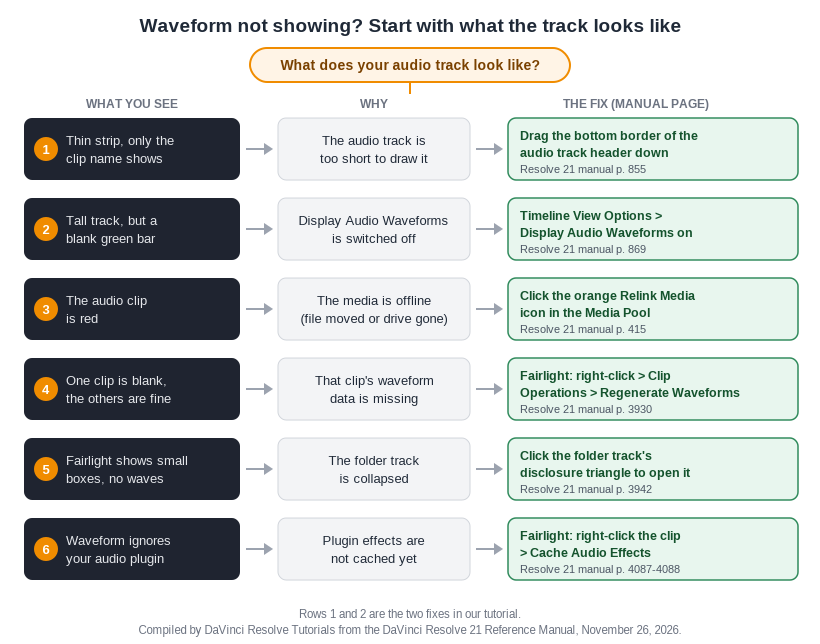
What the flowchart shows, in text:
| What you see | Why | The fix | Page |
|---|---|---|---|
| 1. A thin strip with only the clip name | The audio track is too short to draw the waveform | Drag the bottom border of the audio track header down | 855 |
| 2. A tall, blank green bar | Display Audio Waveforms is off | Timeline View Options > Display Audio Waveforms | 869 |
| 3. A red clip | The media is offline, because the file moved or its drive is unplugged | Click the orange Relink Media icon in the Media Pool, then Locate | 415 |
| 4. One blank clip among normal ones | That clip’s waveform data is missing | Fairlight page: right-click > Clip Operations > Regenerate Waveforms | 3930 |
| 5. Small boxes and no waves on the Fairlight page | A folder track is collapsed | Click the folder track’s disclosure triangle | 3942 |
| 6. A waveform that ignores your plugin | Clip plugin effects are not cached | Right-click the clip > Cache Audio Effects | 4087-4088 |
Rows 1 and 2 are the two fixes in our tutorial. Row 3 needs the original file back.
Manual page 415 says the Relink Media icon in the Cut and Edit page Media Pool highlights orange when Resolve can’t find media, and its Disk Search button runs a deeper search.
Why are waveforms missing on the Fairlight page?
Waveforms go missing on the DaVinci Resolve Fairlight page for two reasons: a collapsed folder track, or a single clip whose waveform data needs rebuilding. Each has a one-click fix.
Fun fact that feels like a prank: the waveform was there the whole time, just too shy to show up in a skinny track.
Folder tracks arrived with DaVinci Resolve 21. Blackmagic’s What’s New page says that when one is collapsed, mini rectangles represent the folder contents
. Manual page 3942 is plainer still:
The original clip’s positions are now portrayed in a minimized view and without any waveform data.
Click the disclosure triangle at the top left of the folder track to open it, and the waveforms return. Deleting the folder track also restores the original tracks for good. Page 3942 adds that folders can nest up to 3 levels deep.
For one blank clip, rebuild its waveform:
- Click Fairlight in the page bar. The same timeline opens there.
- Right-click the audio clip with the missing waveform.
- Choose Clip Operations > Regenerate Waveforms (manual page 3930).
If the waveform on the Fairlight page is there but tiny, use the Vertical Zoom slider at the right of the toolbar. Page 3900 says it shows more detail in the height of your waveforms, centred on the topmost selected audio track.
Why doesn’t the waveform change after you increase the volume?
In DaVinci Resolve, some audio changes redraw the waveform straight away, and plugin effects wait until you cache them. So a waveform that ignores your change is usually not a display bug.
- File Inspector Level slider: select channels in the Audio Configuration section and move Level. Manual page 961 says the waveform adjusts dynamically and shows the trim in dB.
- Muted channels: the composite waveform at the top of Audio Configuration updates with the mute status of each track (page 959).
- Fairlight clip adjustments: Blackmagic’s Fairlight page overview says the waveform updates in real time.
- Clip plugin effects: right-click the clip and choose Cache Audio Effects. Page 4087 says the cached clip’s waveform then updates to reflect the altered audio.
To make a quiet clip louder in the first place, four easy ways to adjust volume in DaVinci Resolve walks through the volume line, the Inspector and the mixer.
Where else can audio waves be missing in DaVinci Resolve?
Outside the Edit page timeline, DaVinci Resolve draws audio waves in the Source Viewer, the Media Pool, the Cut page and the Fusion page, and each place has its own switch. Turning on one never turns on the others.
- Source Viewer: click the three-dot option menu at the top right of the viewer to turn on the audio waveform overlay, as Blackmagic’s Edit page overview describes.
- Media Pool: the option menu’s Show Audio Waveforms draws a waveform in every audio clip thumbnail (manual page 364).
- Cut page: Timeline Options > Trim to Audio expands the waveform while you trim (pages 663 and 738).
- Fusion page: the audio waveforms appear in the Keyframes Editor to help time animations (page 1337). Page 1337 adds that a muted timeline track is not heard in Fusion.
For the full tour of every waveform view and its look options, see how to show waveforms everywhere in DaVinci Resolve.
Is the waveform button the same in DaVinci Resolve 18 and 21?
Yes. The button our DaVinci Resolve 18 tutorial clicks is still called Display Audio Waveforms, inside Timeline View Options, in the DaVinci Resolve 21 Reference Manual dated July 2026. The track resizing works the same way too.
The newest point update is DaVinci Resolve 21.2. CineD reported that Blackmagic published its release notes on . CineD’s change list covers touch screens, color science and rendering, with no waveform display changes in it.
The one real difference since version 18 is the Fairlight folder track, which can hide waveforms when it is collapsed.
None of the controls on this page is marked Studio Version Only in the manual, so they work in the free DaVinci Resolve as well as DaVinci Resolve Studio.
What should you check first next time a waveform disappears?
Check these five things in order next time a DaVinci Resolve waveform disappears. The first two solve most cases in seconds.
- Track height: is the audio track tall enough? Drag its bottom border down or Shift-scroll.
- The button: is Display Audio Waveforms on in Timeline View Options?
- The colour: is the clip red? Relink the media.
- The page: on Fairlight, is a folder track collapsed?
- One clip only: regenerate its waveform from Clip Operations.
A hidden waveform never removes sound from your export. If an exported file really has no audio, check that the Export audio checkbox is on in the Audio panel of the Deliver page render settings (manual page 4205).
With the waves back, the pauses between sentences are easy to spot. Cutting audio with Unlink and the razor blade shows how to trim them cleanly.
Go on, give those waves room to breathe. Your next cut is going to land right between two words.
Sources and further reading
- DaVinci Resolve 21 Reference Manual (PDF) — Blackmagic Design, July 2026, 4,444 pages; audio track resizing (pages 855, 870, 875, 876), Timeline View Options and Display Audio Waveforms (869, 1132-1133), Relink Media (415), Audio Configuration (959, 961), Fairlight Vertical Zoom (3900), Regenerate Waveforms (3930), folder tracks (3942), Cache Audio Effects (4087-4088), other waveform views (359, 364, 663, 738, 1337), Export audio (4205); read November 26, 2026
- DaVinci Resolve Edit page overview — Blackmagic Design; audio waveforms for marking clips and the Source Viewer’s three-dot overlay menu, read November 26, 2026
- DaVinci Resolve Fairlight page overview — Blackmagic Design; clip and waveform editing in one timeline, waveforms that update in real time, read November 26, 2026
- DaVinci Resolve 21 What’s New — Blackmagic Design; Fairlight folder tracks and their collapsed view, read November 26, 2026
- DaVinci Resolve 21.2 Released — CineD, Nino Leitner, November 6, 2026; release notes published November 4, 2026 and the main changes, read November 26, 2026
Questions and answers
Why is my audio waveform not showing in DaVinci Resolve?
Usually the audio track is too short to draw it, or Display Audio Waveforms is off in Timeline View Options, which also minimizes the audio tracks. Drag the bottom border of the audio track header down first, then check that button. A red clip means the media is offline and needs relinking.
How do I turn the waveform back on in DaVinci Resolve?
On the Edit page, click Timeline View Options at the far left of the timeline toolbar and click Display Audio Waveforms, the third button in the top row. If it already looks on, click it off and on again. The waveforms return on every audio track.
Why is my DaVinci Resolve audio track green with no waveform?
A tall green audio clip with no waveform means Display Audio Waveforms is switched off, so resizing the track won’t help. Turn the button on in Timeline View Options. The green colour itself shows the clip is linked; offline clips turn red.
How do I fix missing waveforms on the DaVinci Resolve Fairlight page?
If you see small boxes instead of waves, open the collapsed folder track with its disclosure triangle. If only one clip is blank, right-click it and choose Clip Operations > Regenerate Waveforms, which the Resolve 21 manual describes on page 3930.
Does turning off waveforms in DaVinci Resolve remove the audio from my export?
No. Display Audio Waveforms and track height only change what the timeline draws. If an export has no sound, open the Deliver page render settings and make sure the Export audio checkbox in the Audio panel is on.