
How to Do Dynamic Zoom in DaVinci Resolve (Zoom In and Out)
Disclosure: this page contains Amazon affiliate links. As an Amazon Associate we earn from qualifying purchases, at no extra cost to you.
Hello there, zoom-and-back-again director, ready to make one shot breathe in and out?
Picture a shot that leans in toward your subject, pauses, then pulls back out as smoothly as it arrived.
DaVinci Resolve makes that move with Dynamic Zoom, a green box, a red box and one Swap button.
Scrubbing to the exact frame where the zoom should turn around is easier with a jog dial, like the DaVinci Resolve Speed Editor keyboards on Amazon.
Short answer: To do a dynamic zoom in DaVinci Resolve, select the clip and choose Dynamic Zoom from the menu at the bottom left of the Timeline Viewer. A red box smaller than the green box zooms in. A green box smaller than the red box zooms out. To zoom in and back out, blade the clip and Swap piece two.
- Turn it on
- Edit page > Timeline Viewer > Transform/Crop/Dynamic Zoom pop-up (bottom left) > Dynamic Zoom, or Inspector > Video > Dynamic Zoom
- Green box
- How the shot is framed on the clip’s first frame
- Red box
- How the shot is framed on the clip’s last frame
- Zoom in
- Red box inside the green box
- Zoom out
- Green box inside the red box
- Reverse it
- Inspector > Video > Dynamic Zoom > Swap
- Zoom in and back out
- Blade the clip into pieces, one move per piece
- Ease choices
- 4: Linear, Ease In, Ease Out, Ease In and Out
Does Dynamic Zoom in DaVinci Resolve zoom in or zoom out?
DaVinci Resolve’s Dynamic Zoom zooms in or out depending only on box size. If the red end box is smaller than the green start box, the shot zooms in. If the green box is the smaller one, the shot zooms out.
Blackmagic’s Edit page overview sums it up: Dynamic zoom is an incredibly easy and fast way to reframe and add gentle push in or pull out animations to any shot.
Each box shows exactly what fills the screen at that moment. A small box means you see less of the picture, so the subject looks bigger.
| Green box (start) | Red box (end) | What you see |
|---|---|---|
| Full frame | Smaller, on the subject | Zoom in |
| Smaller, in the middle | Full frame | Zoom out |
| Small, on the left | Same size, on the right | Pan with no zoom |
| Large, on the left | Small, on the right | Pan and zoom in at once |
| Same size and place | Same size and place | A still, reframed shot (no movement) |
Where is Dynamic Zoom in DaVinci Resolve 18 and 21?
In DaVinci Resolve 18 and 21, Dynamic Zoom is in the pop-up menu next to the Transform/Crop/Dynamic Zoom button, at the bottom left of the Edit page’s Timeline Viewer. The same controls sit in the Inspector’s Video tab.
- Open the Edit page and click your clip on the timeline.
- At the bottom left of the Timeline Viewer, open the pop-up beside the Transform/Crop/Dynamic Zoom button and choose Dynamic Zoom.
- Green and red borders appear around the picture. Moving either one turns Dynamic Zoom on in the Inspector by itself, the manual says.
- To see the settings, click Inspector at the top right and stay on the Video tab. The Dynamic Zoom group holds Dynamic Zoom Ease and Swap.
The manual also lists the boxes under View > Viewer Overlay. On the Cut page, Dynamic Zoom lives behind the Tools button at the bottom left of the Viewer.
How do you zoom in with Dynamic Zoom in DaVinci Resolve?
To zoom in with Dynamic Zoom in DaVinci Resolve, leave the green box on the full frame and shrink the red box around your subject. The shot pushes in across the whole clip.
- Select the clip and choose Dynamic Zoom from the Timeline Viewer’s bottom-left pop-up.
- Leave the green box on the full frame. That’s your starting view.
- Drag a corner of the red box inward until it frames the face, the product or the detail you want to end on.
- Drag inside the red box to slide it over the subject. A motion path line shows the route.
- Press play. DaVinci Resolve fills in the camera position and zoom between the two boxes for you.
The push-in lasts as long as the clip. Trim the clip shorter for a faster zoom in, or longer for a slower one.
How do you zoom out from the middle of the video in DaVinci Resolve?
To zoom out from the middle of the video in DaVinci Resolve, shrink the green box to the centre of the picture and leave the red box on the full frame. The shot starts close and pulls back to the whole scene.
- Choose Dynamic Zoom from the Timeline Viewer’s pop-up.
- Drag a corner of the green box inward, then drag inside it to centre it.
- Let go when it clicks into place. The manual says dragged outlines snap at the frame’s X and Y centre and around its outer thirds.
- Keep the red box on the full frame and press play. The clip zooms out from the green box to the red one.
Already built a zoom in? Click Swap in the Inspector instead and it plays as a zoom out.
Dynamic Zoom only works inside the picture. If the image should shrink smaller than the screen, with a border around it, use Zoom keyframes in Inspector > Transform instead.
How do you zoom in and then zoom out on the same clip?
To zoom in and then out on one clip in DaVinci Resolve, cut the clip in two with the Blade tool. Give the first piece a zoom in and the second piece the same zoom with Swap clicked.
One Dynamic Zoom always runs from a clip’s first frame to its last. That’s why each direction needs its own piece.
- Park the playhead where the zoom should turn around. Press B for the Blade tool and click the clip there. The manual calls it the Razor or Blade Edit mode.
- Switch back to the Selection tool. Select piece 1 and set a zoom in: green on the full frame, red on the subject.
- Copy piece 1 (Command-C on a Mac, Ctrl-C on Windows).
- Select piece 2 and choose Edit > Paste Attributes, or right-click it and pick Paste Attributes. Tick the video attributes to carry over and click Apply.
- With piece 2 still selected, click Swap under Inspector > Video > Dynamic Zoom.
- Play across the cut. Piece 1 ends on the framing that piece 2 starts on, so the move turns around with no jump.
Want a pause at the close-up? Blade the clip twice. Paste the same attributes onto the middle piece, then drag its green box onto its red box so nothing moves. Snapping to the centre helps the two boxes line up exactly.
For more ways to cut a shot, see how to split video with the Blade tool.
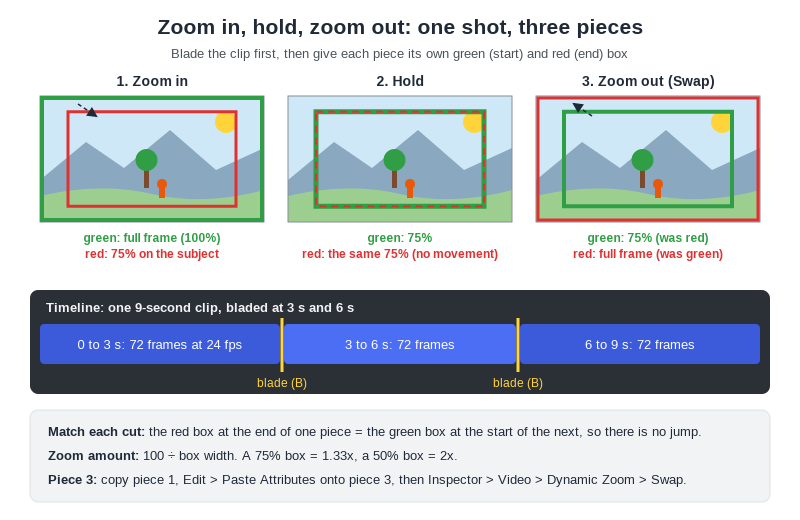
What the diagram shows, in text:
- Timeline: one 9-second clip, bladed at 3 s and 6 s into three 72-frame pieces at 24 fps.
- Piece 1, zoom in: green box on the full frame (100%), red box at 75% width on the subject.
- Piece 2, hold: green and red both at the same 75% framing, so the shot stays still.
- Piece 3, zoom out: piece 1’s boxes pasted with Paste Attributes, then Swap. Green is 75%, red is the full frame.
- Each cut: one piece’s red box matches the next piece’s green box, so there’s no jump.
- Zoom amount: 100 ÷ box width, so a 75% box is 1.33x and a 50% box is 2x.
Here’s how long each piece runs when a shot is split into equal thirds. Compiled by DaVinci Resolve Tutorials from standard frame rates on November 26, 2026:
| Whole shot | Blade at | Each piece | Frames at 24 fps | Frames at 25 fps | Frames at 30 fps |
|---|---|---|---|---|---|
| 6 seconds | 2 s and 4 s | 2 s | 48 | 50 | 60 |
| 9 seconds | 3 s and 6 s | 3 s | 72 | 75 | 90 |
| 12 seconds | 4 s and 8 s | 4 s | 96 | 100 | 120 |
Equal thirds are only a starting point. A short hold of a second or so usually feels more natural than a long one.
How much does a Dynamic Zoom box zoom in?
A Dynamic Zoom box magnifies the shot by 100 divided by its width as a percentage of the frame. A red box 75% as wide as the frame gives a 1.33x zoom in. A 50% box gives 2x.
There’s something oddly satisfying about clicking Swap and watching a zoom in turn into a zoom out. One button, instant plot twist.
The boxes keep the frame’s shape, so a box at half the width also shows half the height. That’s a quarter of the picture.
This table was compiled by DaVinci Resolve Tutorials on November 26, 2026, from the manual’s box definitions and the 1920 and 3840 pixel widths of 1080p and 4K UHD frames:
| Box width | Zoom | Share of the picture you see | Real pixels across, 1080p clip | Real pixels across, 4K UHD clip |
|---|---|---|---|---|
| 100% | 1.00x | 100% | 1920 | 3840 |
| 90% | 1.11x | 81% | 1728 | 3456 |
| 80% | 1.25x | 64% | 1536 | 3072 |
| 75% | 1.33x | 56% | 1440 | 2880 |
| 66.7% | 1.50x | 44% | 1280 | 2560 |
| 50% | 2.00x | 25% | 960 | 1920 |
| 33.3% | 3.00x | 11% | 640 | 1280 |
On a 1920 by 1080 timeline, a 4K UHD clip still has a full 1920 pixels across at a 50% box. A 1080p clip at the same size only has 960, so it starts to look soft.
How do you pan and zoom at the same time in DaVinci Resolve?
To pan and zoom at the same time in DaVinci Resolve, put the green and red boxes in different places and at different sizes. Dynamic Zoom moves the frame and changes the zoom together, in one smooth move.
- Drag inside the green box to where the move should start, and resize it.
- Drag the red box to where the move should end, and resize it.
- Watch the motion path between the two box centres. That’s the route the frame takes.
- Press play. The shot zooms and changes position at once.
Two boxes of the same size give a straight pan with no zoom. Holding Shift while dragging keeps a box moving on just the X or Y axis, according to the manual’s Cut page tip.
For a smoother start and finish, open Dynamic Zoom Ease in the Inspector and choose Ease In and Out. The manual says Ease sets how the motion created by these controls accelerates
.
What does the Swap button do in Dynamic Zoom?
The Swap button in DaVinci Resolve’s Dynamic Zoom trades the green and red boxes, so the move plays backwards. The manual says it reverses the start and end transforms that create the dynamic zoom effect
.
- Where: Inspector > Video > Dynamic Zoom, under Dynamic Zoom Ease. On the Cut page it sits in the Tools toolbar.
- Zoom in becomes zoom out: and a left-to-right pan runs right to left.
- Undo it: click Swap again.
People searching DaVinci Resolve swap clips
usually mean something else: changing the order of two clips on the timeline. The manual calls that a Shuffle Insert (or Swap Insert) edit.
Select the clip, hold Command and Shift on a Mac, then drag it left or right. Its neighbours move over to make room. With snapping on, the clips trade places cleanly at their edit points.
Can you add one dynamic zoom across several clips?
Yes. An Adjustment Clip carries one Dynamic Zoom across every clip underneath it in DaVinci Resolve. The manual lists Dynamic Zoom among the Inspector settings an Adjustment Clip passes down.
- Open the Effects Library, go to the Toolbox and find Adjustment Clip.
- Drag it to the track above your clips and stretch it over all of them.
- Select the Adjustment Clip and set its green and red boxes as usual.
To give each clip the same move on its own instead, copy one clip and use Edit > Paste Attributes on the others. The manual says Paste Attributes copies video and audio adjustments and effects from one clip to many others
.
When should you use keyframes instead of Dynamic Zoom?
Use keyframes in DaVinci Resolve when one clip needs several zoom moves, an exact start frame or a curved path. Use tracking when the subject moves around the frame. Dynamic Zoom only does one straight move per clip.
| You want | Use | Where |
|---|---|---|
| One push-in, pull-out or pan | Dynamic Zoom | Timeline Viewer pop-up or Inspector > Video |
| Zoom in and out with no cuts | Zoom and Position keyframes | The diamond buttons in Inspector > Transform |
| Zoom that follows a moving subject | Tracking | The Color page tracker or the Fusion Tracker |
Blackmagic’s Edit page puts the keyframe route in one line: You can change or animate any setting over the clip’s duration using the diamond keyframe buttons.
The keyframe zoom tutorial walks through them.
To see keyframes later, the Resolve 21 manual says to click the Keyframes tab in the upper left. Zoom and Position keyframes show up there in the Transform group. For zoom and track, start with object tracking in DaVinci Resolve.
Why is my DaVinci Resolve zoom in and out not working?
When a DaVinci Resolve zoom in and out isn’t working, the usual causes are a hidden overlay, the wrong clip selected, or framings that don’t match at the cut. Here are the fixes, compiled from the DaVinci Resolve 21 Reference Manual:
| What you see | Why it happens | The fix |
|---|---|---|
| No green or red boxes | The overlay is off or set to Transform or Crop | Choose Dynamic Zoom from the bottom-left pop-up, or press Shift-` to turn the overlay back on |
| The boxes land on another clip | With nothing selected, the top auto-select-enabled clip under the playhead gets the controls | Click the clip you want first |
| The shot zooms the wrong way | The green and red boxes are the wrong way round | Click Swap |
| The shot jumps at the cut | Piece 1’s red box doesn’t match piece 2’s green box | Paste Attributes from piece 1, then Swap piece 2 |
| Black edges creep in | A box reaches past the edge of the picture | Pull both boxes back inside the frame |
| Can’t reach a corner | The box sits at the viewer’s edge | Pick a smaller viewing percentage from the viewer’s scale pop-up |
A quick check before you export:
- Zoom in: red box inside the green box.
- Zoom out: green box inside the red box.
- Zoom in and out: one piece per direction, matching framings at every cut.
- Smooth start and stop: Dynamic Zoom Ease set to Ease In and Out.
Pick one shot now and try the 9-second version: blade at 3 and 6 seconds, then zoom in, hold and zoom out at 75%.
When you want only the basics again, the Dynamic Zoom pan and zoom guide covers speed, Ken Burns photos and the Cut page.
Go blade one shot into three and give it the in, the pause and the out. Your viewers will feel the camera lean in, even if it never moved.
Sources and further reading
- DaVinci Resolve 21 Reference Manual (PDF) — Blackmagic Design, July 2026; Dynamic Zoom (Ease, Swap), Onscreen Controls for Transform, Crop, and Dynamic Zoom, Object Snapping, Cut page Dynamic Zoom, Splitting and Joining Clips, Paste Attributes, Adjustment Clips, Shuffle/Swap Insert Edits, Single Viewer Mode and the Keyframe Editor; read November 26, 2026
- DaVinci Resolve Edit page overview — Blackmagic Design; Dynamic Zoom for push in and pull out moves, the green and red boxes, the Inspector at the top right and the diamond keyframe buttons, read November 26, 2026
- What’s new in DaVinci Resolve 21 — Blackmagic Design; names DaVinci Resolve 21 as the current version, read November 26, 2026
- Blackmagic Design DaVinci Resolve 21.2 — Newsshooter, November 4, 2026 (updated November 9, 2026); the 21.2 change list, which names no Dynamic Zoom change, read November 26, 2026
Questions and answers
How do you zoom in and out in DaVinci Resolve?
Use Dynamic Zoom from the bottom-left pop-up of the Timeline Viewer. A red box smaller than the green box zooms in, and a green box smaller than the red box zooms out. To zoom in and then out on one shot, blade the clip and click Swap on the second piece.
Is Dynamic Zoom still in DaVinci Resolve 21?
Yes. Blackmagic Design’s DaVinci Resolve 21 Reference Manual (July 2026) still uses the names Dynamic Zoom, the green and red boxes, Dynamic Zoom Ease and Swap, the same as in DaVinci Resolve 18. Newsshooter’s report on version 21.2 from November 4, 2026 lists no Dynamic Zoom change.
How do you swap the start and end of a dynamic zoom in DaVinci Resolve?
Select the clip, open the Inspector at the top right, and on the Video tab click Swap in the Dynamic Zoom group. The green and red boxes trade places, so a zoom in plays as a zoom out. Click Swap again to undo it.
How do you see keyframes in DaVinci Resolve?
In DaVinci Resolve 21, the manual says to click the Keyframes tab in the upper left to open the Keyframe Editor. It lists one track for each setting you can keyframe on the selected clip, with Zoom and Position in the Transform group. Dynamic Zoom uses its two boxes instead of diamond keyframes.
How do you zoom and track in DaVinci Resolve?
Dynamic Zoom can’t follow a moving subject, because it only does one straight move from the green box to the red box. To zoom and follow a subject, use the Color page tracker or the Fusion page Tracker. Use Zoom and Position keyframes for shorter, hand-timed moves.